Why Your Home WiFi Keeps Dropping Out (And How to Actually Fix It)
It's Not Your Internet. It's Your Network.
When the WiFi drops out mid-Zoom call or the kids start yelling that Netflix is buffering again, your first instinct is to blame your internet provider. And sometimes that's fair. But in about 80% of the homes we work in, the internet connection itself is fine — it's the WiFi inside the house that's the problem.
Your ISP delivers internet to a single point. What happens after that — how that connection gets distributed to every device in every room — is entirely down to your internal network. And in most Australian homes, that internal network is a $50 ISP-supplied router trying to do a job it was never built for.
The Real Reasons Your WiFi Is Terrible
1. Your Router Is Doing Too Many Jobs
That box your ISP gave you is simultaneously acting as a modem, router, firewall, DNS server, DHCP server, and wireless access point. It's like asking one person to be the receptionist, security guard, switchboard operator, and postal worker all at once.
The wireless radio in these combo devices is an afterthought. The manufacturer spent the budget on the modem chipset (which is what your ISP cares about), and stuck in the cheapest WiFi radio they could find.
The fix: Separate the jobs. Use your ISP box as a modem only, and let dedicated devices handle routing and WiFi. This is how every business, school, and hotel does it — and there's no reason your home should be different.
2. One Access Point Can't Cover a Whole House
Here's a fact that router manufacturers don't advertise: a single wireless access point has a practical coverage radius of about 10-15 metres through walls.
That beautifully marketed "whole home coverage" from a single device? It assumes you live in a studio apartment with no walls. In a typical three-bedroom Australian brick home, a router in the study might barely reach the main bedroom — let alone the garage, backyard, or upstairs.
Every wall, door, and floor between your device and the router reduces signal. Brick walls are especially brutal. A signal that's "full bars" in the hallway can be unusable two rooms away.
3. Mesh Systems: Better Marketing Than Engineering
If you've already tried a mesh WiFi system (Google Nest, TP-Link Deco, Netgear Orbi), you know the frustration. They're marketed as the solution to dead zones, but they have fundamental limitations:
- Wireless backhaul — each mesh node connects to the next one wirelessly, halving your bandwidth at every hop
- Band stealing — the same radio that talks to your devices also talks to the other mesh nodes
- Roaming issues — devices "stick" to a distant node instead of switching to the closer one
- Consumer-grade radios — same cheap WiFi chipsets as ISP routers, just spread across multiple boxes
Mesh systems are better than a single router, but they're a consumer workaround for a problem that has a proper engineering solution.
4. WiFi Interference Is Worse Than You Think
In a suburban street, your WiFi is competing with every neighbour's WiFi. Open your phone's WiFi scanner and count how many networks you can see — 10? 20? 30?
Every one of those is fighting for the same radio channels. The 2.4GHz band only has 3 non-overlapping channels in Australia. If you and your three closest neighbours are all on channel 6 (the default for most routers), you're all slowing each other down.
The 5GHz band has more channels but shorter range. WiFi 6E and WiFi 7 add 6GHz, but your existing devices probably don't support it.
The fix: Enterprise-grade access points like the Ubiquiti U7 Pro automatically select the least congested channel and adjust transmit power to minimise interference. They do this continuously, not just at boot.
What the Professionals Actually Install
When we set up networking in a home, we follow the same principles that apply to commercial buildings. The gear is simpler, but the approach is identical.
The Foundation: Wired Backbone
This is the single most important thing, and the one most people skip.
Every access point should be connected to your network with an Ethernet cable. Not wirelessly. Not via powerline adapters. A proper Cat6 cable run from a central switch.
Why? Because WiFi is for the "last metre" — the connection between your device and the access point. Everything behind the access point should be wired. This means:
- Full bandwidth to every access point (no wireless backhaul losses)
- Zero interference on the backbone
- Rock-solid reliability regardless of what's happening on the airwaves
A UniFi Switch Lite 16 PoE sits in your comms cabinet (or wherever your router lives) and provides both data and power to your access points over a single cable. One cable per AP, no power adapters needed.
The Access Points: Right Device, Right Location
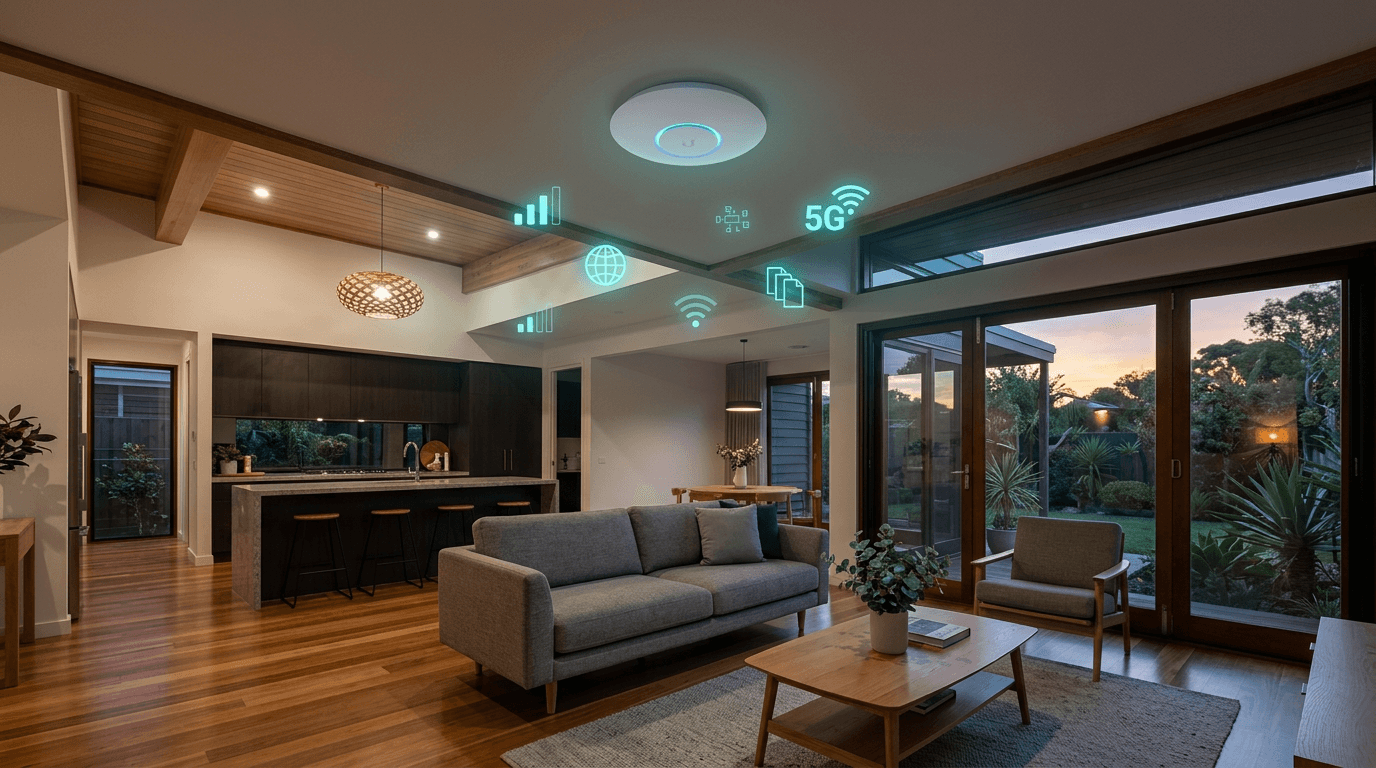
Ceiling-mounted access points aren't just for offices. They're the optimal position in any building because:
- Radio waves travel downward and outward better than upward through floors
- Ceiling mount = no obstructions at antenna height
- Central placement means equal coverage in all directions
- Out of the way — no devices on shelves or benchtops
A single Ubiquiti U7 Pro covers approximately 120m² with strong, consistent signal. For a typical three-bedroom home:
| Home Size | Access Points Needed | Placement | |-----------|---------------------|-----------| | Apartment / small home (under 120m²) | 1 | Central hallway ceiling | | 3-bed house (120-200m²) | 2 | Hallway + living area | | Large home (200-350m²) | 2-3 | Distributed across floors/wings | | Very large / multi-storey | 3-4 | One per floor/wing |
The Controller: One Dashboard, Total Visibility
All UniFi devices are managed through a single interface. You can see:
- Every device connected to your network
- Which access point each device is using
- Signal strength, throughput, and channel utilisation
- Bandwidth usage per device (find out who's hogging the connection)
- Connected client history and uptime
This isn't just for nerds. When something goes wrong — and eventually it will — having visibility into your network means you can diagnose it in minutes instead of spending an hour on the phone with your ISP.
The Speed Test Lie
Here's something that catches people out: your WiFi speed test doesn't measure what you think it measures.
When you run a speed test on your phone, you're measuring the slowest link in the chain:
- Your phone's WiFi radio → access point
- Access point → switch → router
- Router → ISP → speed test server
If you get 50Mbps on WiFi but your plan is 100Mbps, the bottleneck might be:
- Your phone's WiFi (older phones max out at 50-70Mbps real-world)
- Distance from the access point
- Interference from neighbours
- The speed test server being busy
The real test: Connect a laptop directly to your router via Ethernet cable and run a speed test. If you get your full plan speed wired but much less on WiFi, your internet is fine — your WiFi distribution needs work.
"But I Just Upgraded to NBN 250..."
We hear this constantly. Someone upgrades their NBN plan from 50Mbps to 250Mbps, and the speed test still shows 60Mbps.
You paid for a faster pipe, but the sprinkler head hasn't changed. Your ISP router's WiFi radio physically cannot deliver 250Mbps to your devices. It might technically support it in a lab, but in a real house with walls, interference, and multiple connected devices, you'll never see it.
This is the most expensive mistake in home networking: paying for speed you can't use because your WiFi hardware is the bottleneck.
What You Actually Need for Fast WiFi
| Internet Plan | Minimum WiFi Standard | Recommended | |---------------|----------------------|-------------| | NBN 50 | WiFi 5 (AC) | WiFi 6 | | NBN 100 | WiFi 6 (AX) | WiFi 6 | | NBN 250 | WiFi 6 (AX) | WiFi 7 | | NBN 1000 | WiFi 6E / WiFi 7 | WiFi 7 + wired for heavy users |
The Ubiquiti U7 Pro is WiFi 7, supporting speeds up to 5.7Gbps. Even on a 1Gbps plan, you'll have headroom for dozens of simultaneous devices without congestion.
The Smart Home Connection
Here's why WiFi matters even more if you're running smart home devices.
Every smart switch, sensor, plug, and camera in your home is a WiFi client. A typical smart home might have 20-40 connected devices. Your ISP router was designed to handle maybe 10-15.
When the device limit gets exceeded:
- Smart switches stop responding
- Automations fail silently
- Cameras drop their stream
- Everything feels "laggy"
Enterprise access points handle 100+ simultaneous clients without breaking a sweat. This is why we always sort the network before installing smart home devices — build the foundation first.
What a Professional Setup Costs
Let's be transparent about pricing:
| Component | Purpose | Cost | |-----------|---------|------| | Ubiquiti U7 Pro x2 | WiFi 7 access points | ~$860 | | UniFi Switch Lite 16 PoE | Powers APs + wired devices | ~$330 | | Cat6 cabling (2 runs, installed) | Wired backbone | ~$200-400 | | Configuration + testing | Setup, optimisation, handover | ~$200-300 | | Total typical 3-bed home | | ~$1,600-1,900 |
Compare that to:
- A premium mesh system: $500-800 (and you'll replace it in 2-3 years)
- Two ISP router upgrades over 5 years: $300-400 (still won't fix the problem)
- The NBN plan upgrade you don't actually need: $30/month × 12 = $360/year wasted
A properly installed network lasts 7-10 years minimum. The UniFi gear we install today will still be receiving firmware updates and performing well when your kids finish high school.
Quick Wins If You're Not Ready for a Full Upgrade
Not everyone needs the full treatment immediately. Here are some things you can do today:
- Move your router to a central location — if it's in a corner office, your house only gets coverage in one direction
- Switch to 5GHz — if your devices support it, 5GHz has less interference (shorter range, but cleaner signal)
- Update your router firmware — many ISP routers have updates available that improve WiFi performance
- Reduce interference — microwaves, baby monitors, and cordless phones all use 2.4GHz. Keep your router away from them
- Restart weekly — consumer routers leak memory over time. A weekly scheduled restart (use a Shelly Plus Plug S on a timer) keeps things running cleaner
The Bottom Line
Bad WiFi isn't something you have to live with. It's a solvable engineering problem, and the solution is well-understood:
- Wired backbone — Ethernet to every access point
- Ceiling-mounted APs — right device, right position
- Enterprise-grade hardware — built for reliability, not a price point
- Proper channel management — automatic, continuous optimisation
The technology exists to give every room in your house the same fast, reliable connection. It's the same technology running in offices, hospitals, and universities — just scaled for a home.
Sick of dead zones and dropouts? Get in touch — we'll assess your home, recommend the right setup, and handle the cabling and installation.